What's new v1.0.4 · May 2026
Highlights from Phases 14–23. Existing users — please read.
- Device serial is the new account number. USSD, mobile and admin all look customers up by their linked solar-unit serial. Last-4-digit shortcut works (e.g.
0283→HS402512000283). - 459 devices imported from Moon. Bulk Admin → Devices → Import refreshes by UUID, leaves assignments intact.
- Device link is required on agent registration. The form refuses to save until at least one device is linked. Live-validated as you type.
- Post-install fault reports. Agents log severity-tagged issues from the customer detail screen; admins triage them inline.
- RBAC tightened to 5 admin roles (super / system / operations / reports / support). Every mutation gated by
require_role(). Vendor portal removed. - Idle-session timeout (30 min default). Frontend now signs out automatically when the backend revokes the session.
- Customer portal serializer aligned — same payload shape as admin / mobile (devices, fault reports, ward).
- Ward dropdown between District and Village. Rufunsa → Namanongo curated.
Overview
SolarAid runs four user-facing surfaces. Each is tuned for a different role and connectivity profile.
| Surface | Who uses it | What it does | Needs network? |
|---|---|---|---|
| Admin Web | Head office / supervisor | Customer management, KYC approval, reports, agent management | Yes |
| Agent Mobile App | Field agent | Customer registration with GPS, payment initiation, history | Offline-capable |
USSD *388*20# | Customer (or someone paying on their behalf) | Initiate payment, view history, retrieve activation code | Any phone, any network |
| Customer Web | Customer with internet access | Login by phone+OTP, view subscription & codes | Yes |
🎬 Demo credentials
Use these in presentations / training. Reset on request.
The Account number is whatever's printed on the customer's unit — a short legacy meter number (111111) or a full device serial (HS402512001111). The last 4 digits (1111) also work as a shortcut when unique. Test Alpha accepts all three.
1. Admin Web supervisor
Browser-based control panel for head office. Manage customers, approve KYC, monitor payments, configure plans.
Sign in
Open solar-aid.ontech.co.zm/auth/login in any browser.
Enter your username + password (see Demo Credentials above).
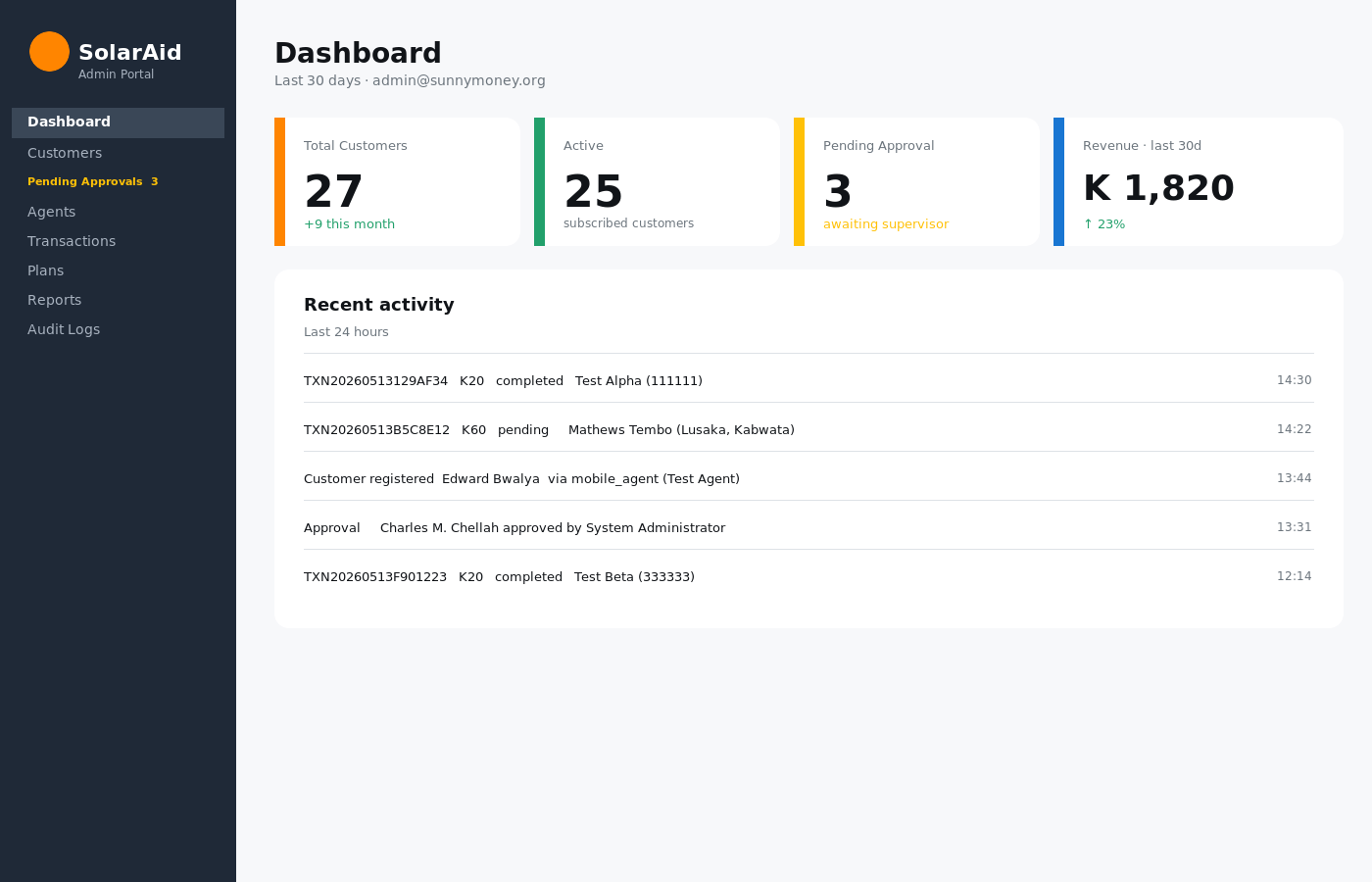
You land on the dashboard with KPI cards, recent activity, and the sidebar to navigate. The Pending Approvals link in the sidebar shows a live count badge.
Manage customers
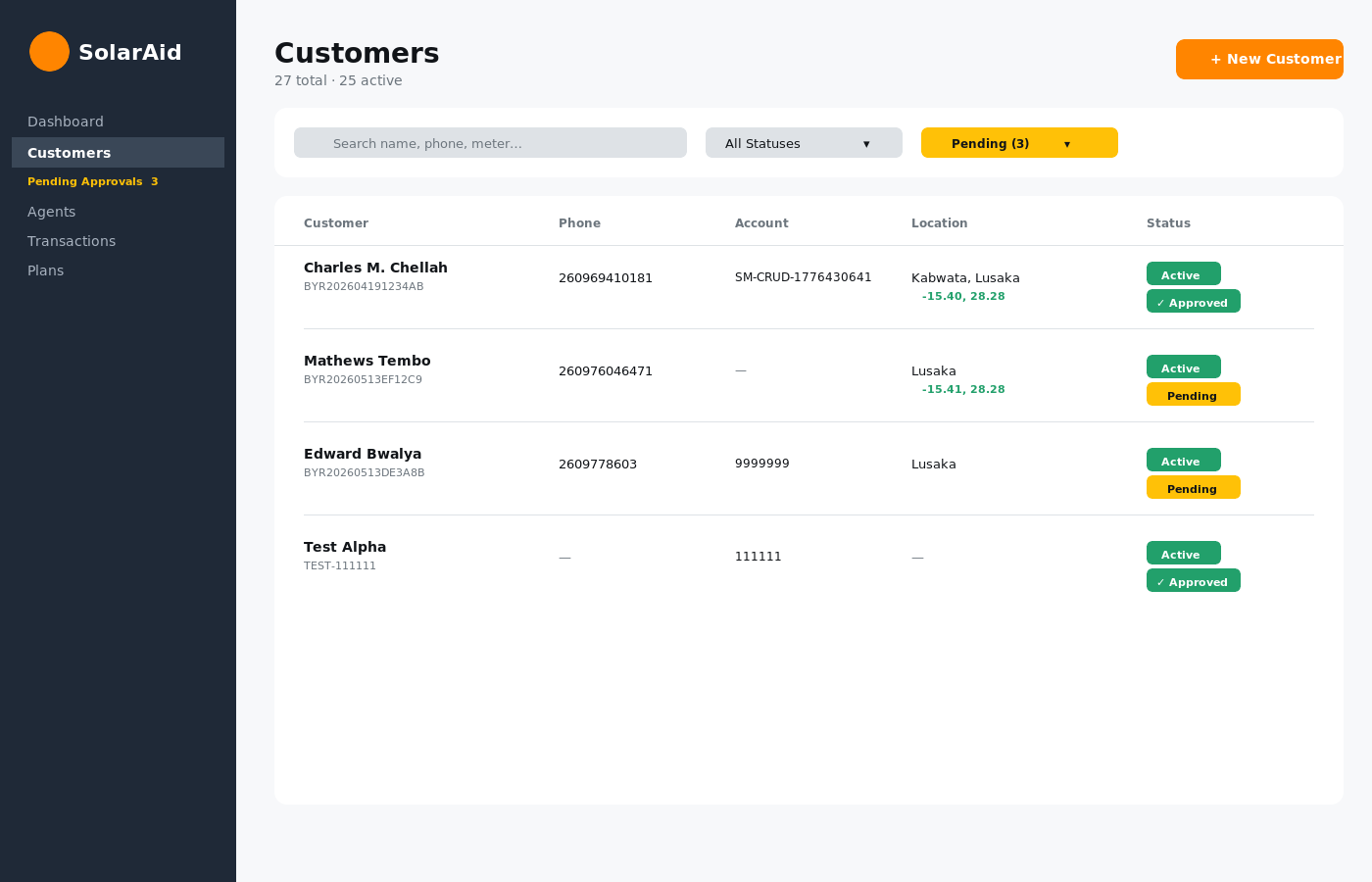
Sidebar → Customers shows every registered customer with status, approval state, location and a GPS-pin icon when coordinates are present.
Create a new customer
From the customers list click + New Customer (top right).
Fill the form. Sections are: Personal · Account · Address · Personal Details · Properties · Solar Experience · Agent Observations · Trusted Person · System Info · Administrative · Bio. Only Name + Phone are required.
Use Use browser location to capture GPS. Pick a Province first to unlock the District dropdown (filtered).
Tick Customer has agreed to terms if applicable (timestamp is auto-stamped).
Click Create Customer. Admin-created customers are auto-approved.
Edit a customer
From the customer detail page click Edit. Every section pre-fills, including the supervisor approval state and the GPS coordinates (you can re-capture).
Approval queue
Customers registered via the agent mobile app land in the pending state. Supervisors review and decide.
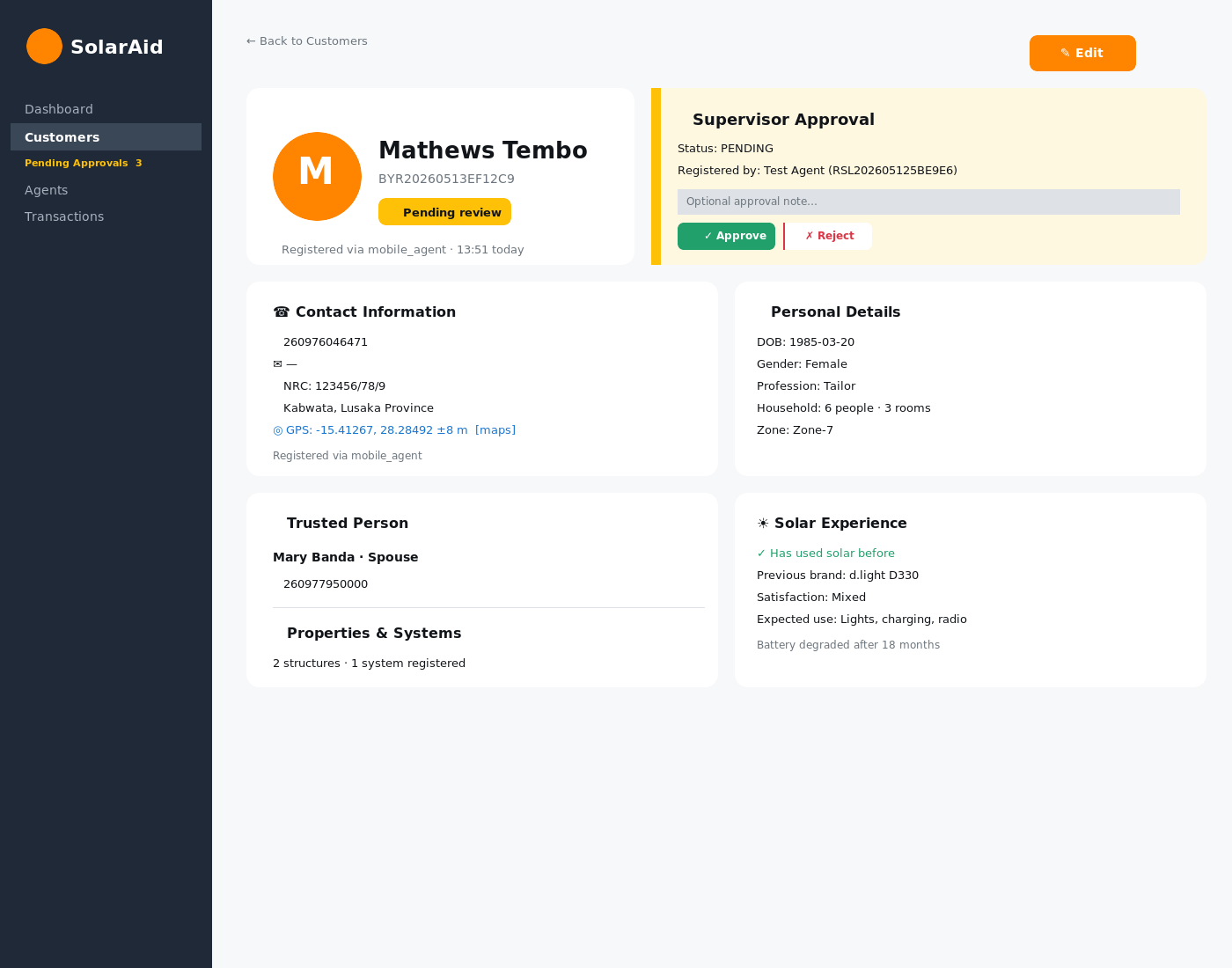
Click Pending Approvals in the sidebar (badge shows live count) or filter the customers list with the Approval dropdown.
Open a pending customer. Review their KYC: GPS pin (clickable Google Maps), Trusted Person, Properties, etc.
On the colored Supervisor Approval card, type an optional note and click Approve or Reject.
Devices (Moon import)
Sidebar → Devices lists every Moon-imported solar unit with its UUID, serial number, status and assigned-customer (if any).
Bulk import from Moon
Click Import from Moon (top right of Devices list) → opens /admin/devices/import.
Upload a CSV or JSON file with columns uuid, serial_number, status. Headers are case-insensitive; common aliases (UUID, device_serial, etc.) also accepted.
The importer upserts by UUID — re-importing the same file refreshes status + raw_data + moon_synced_at, leaves customer assignments intact. You see counts: inserted / updated / skipped / failed.
Assign a device to a customer
Open any device row → Assign to customer form → enter the customer ID. Once linked, the device serial becomes the EAAS account identifier for USSD and mobile payments. (Field agents do this directly in the mobile app — see Link a device.)
Fault reports
Each customer's detail page has a Fault Reports card. Field agents log post-install issues via the mobile app; admins triage them here.
- Per-row severity badge (low / medium / critical) and status (Open / Resolved).
- Inline Mark resolved form with an optional resolution note.
- Sidebar admin pages don't aggregate faults yet — review them per customer.
Payments & reports
- Transactions sidebar → full transaction list with filters by status, date range, agent, phone.
- Payments Dashboard sidebar → success/failure split, today/week/month KPIs.
- Plans sidebar → manage the energy-plan catalog (Weekly K20, Monthly K60, Multi-Month).
- Agents sidebar → onboard agents, suspend/reactivate. Agents are KYC + payment-initiation only — no commission, no float (removed in Phase 15).
- Reports / Exports sidebar → CSV/PDF exports with all the same filters as the list views.
2. Agent Mobile App android
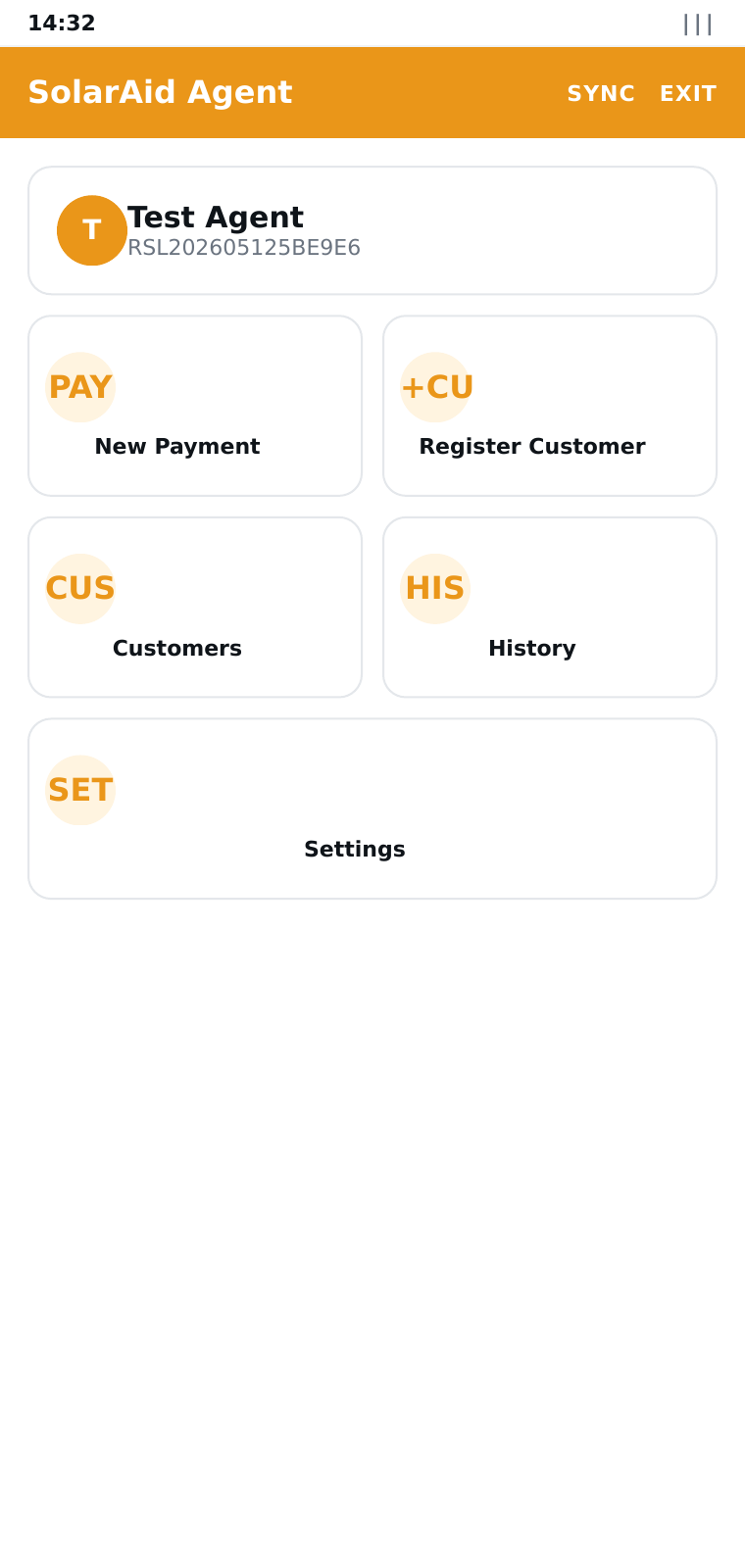
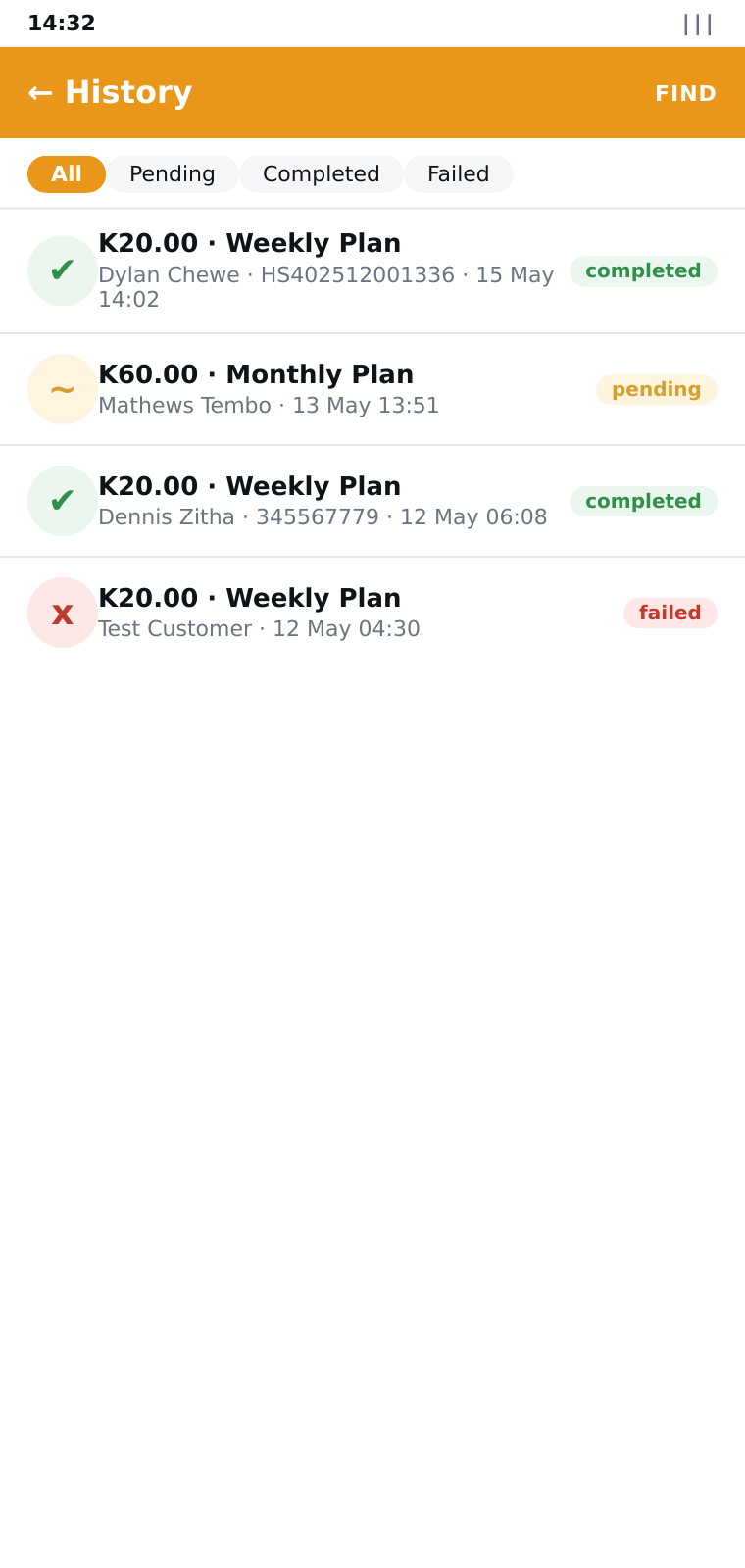
Offline-first Android app for field agents. Capture customers + GPS, take payments, all without a constant signal.
Install
Open solar-aid.ontech.co.zm/app/solaraid-agent.apk in Chrome on the agent's Android phone.
When prompted, allow Install unknown apps for Chrome (Settings → Apps → Chrome → Install unknown apps → On).
Tap the downloaded solaraid-agent.apk file → Install. Android may show a one-time "unknown developer" warning — accept.
Open the app. Grant Location permission when asked (used to pin customer registrations).
Login
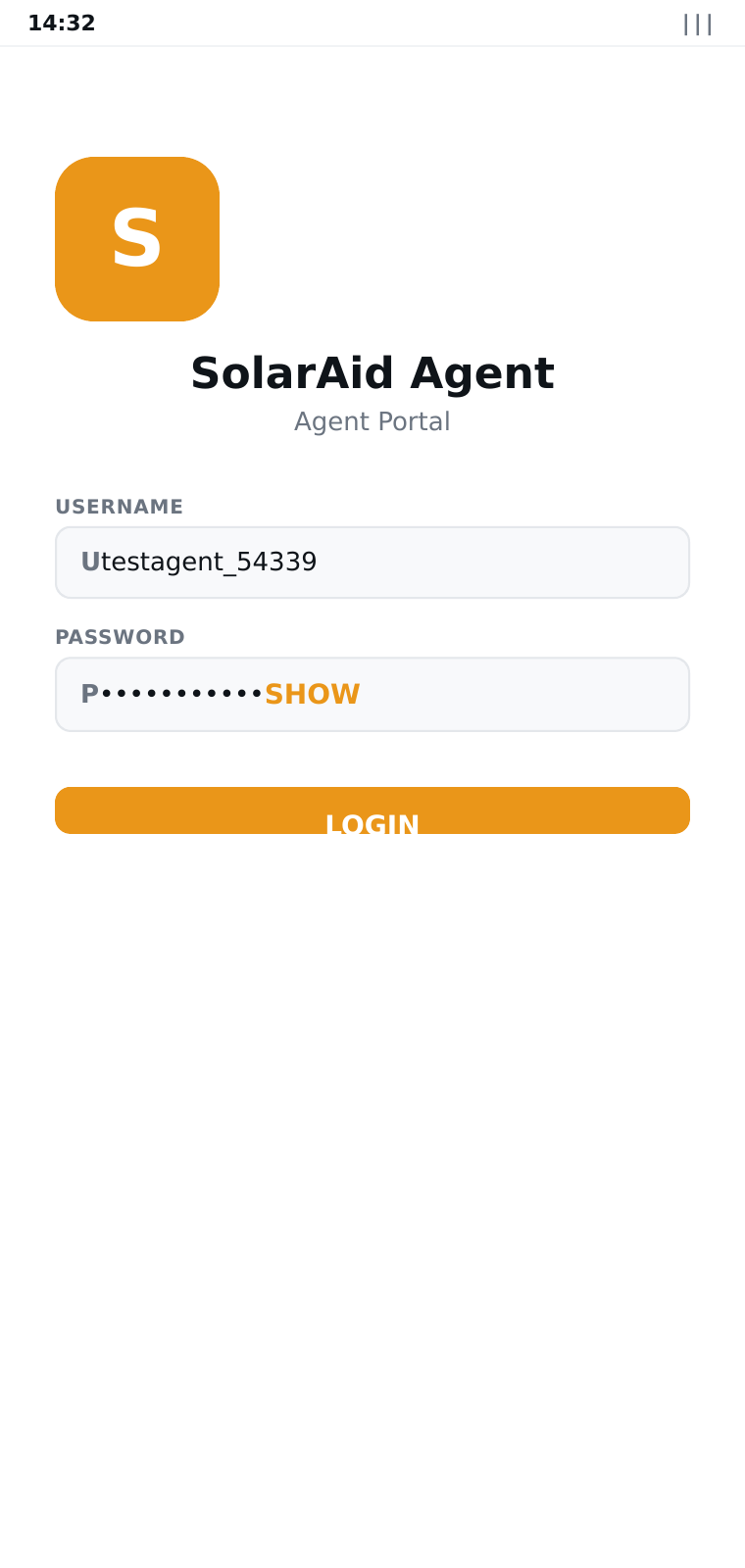
Enter the agent's username + password issued by admin. Tap the eye icon in the password field to peek at what you typed (new in v1.0.3). The app pre-fetches plans, customers and recent history so the next session works offline.
Register a new customer
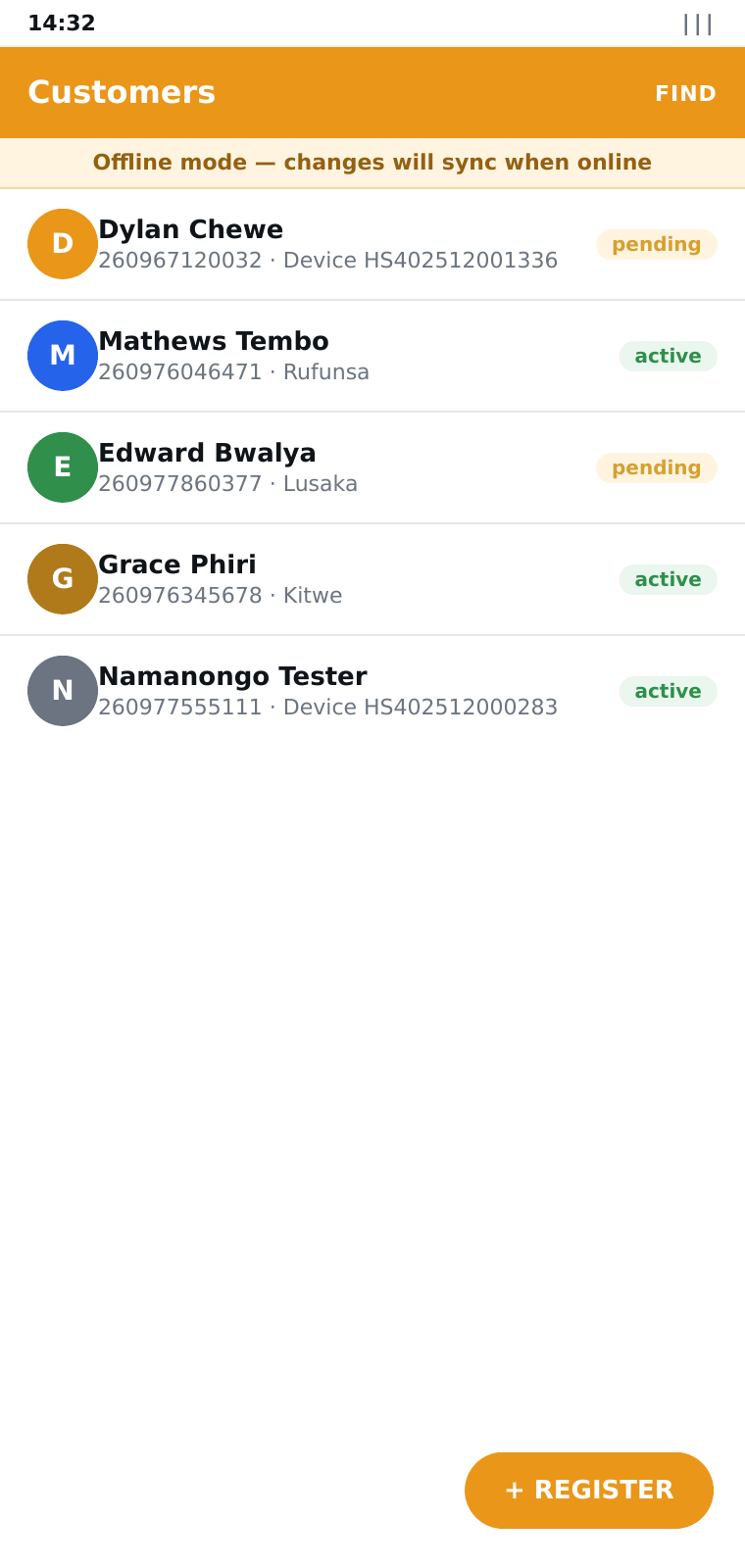
From Home, tap Register Customer (or open the Customers list and tap the + Register FAB).
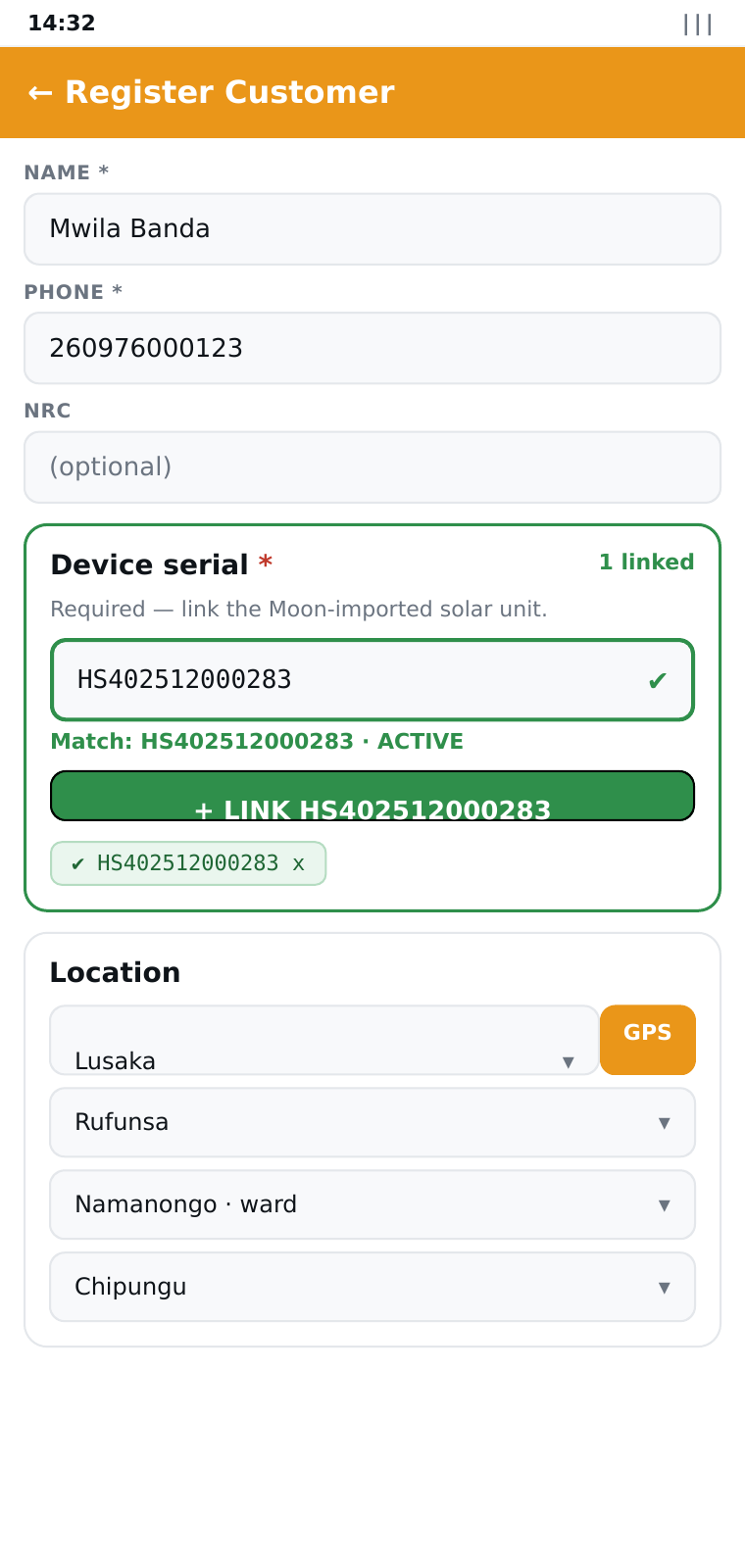
Fill Name, Phone (Zambian format 260…) and optional NRC.
Device serial * — required card immediately under the NRC. This is the customer's Account number (same thing as the legacy meter number). Type the last 4 digits from the unit's sticker (e.g. 0283) or the full serial (HS402512000283). The app live-validates against the Moon import; the status icon goes spinner → green check, the button becomes Link HS40251200XXXX. Tap it — the serial appears as a green chip below.
Tap Capture on the GPS card. Tap the target icon next to Province for auto-detect — the app picks the nearest district from the bundled 117-district dataset. Pick a Ward if the district has wards (Rufunsa auto-picks Namanongo), then choose a village from the 30-name dropdown.
Optionally toggle and fill Personal details, Community contact, Properties & systems, Solar experience, Trusted Person, Bio.
If the customer agreed to terms, tick Customer agreed to SolarAid terms. The server stamps the time.
Tap Save Customer. Online → customer appears immediately; offline → action queues and syncs automatically when connectivity returns.
Link a device after the fact
If a customer was registered without a device, open their detail screen → Linked Devices card → Link a device bottom sheet. Same live-validated serial input as the register screen.
If the typed serial matches a device already linked to another customer, the icon turns orange (lock) and the Link button stays grey — an admin has to reassign first.
Take a payment
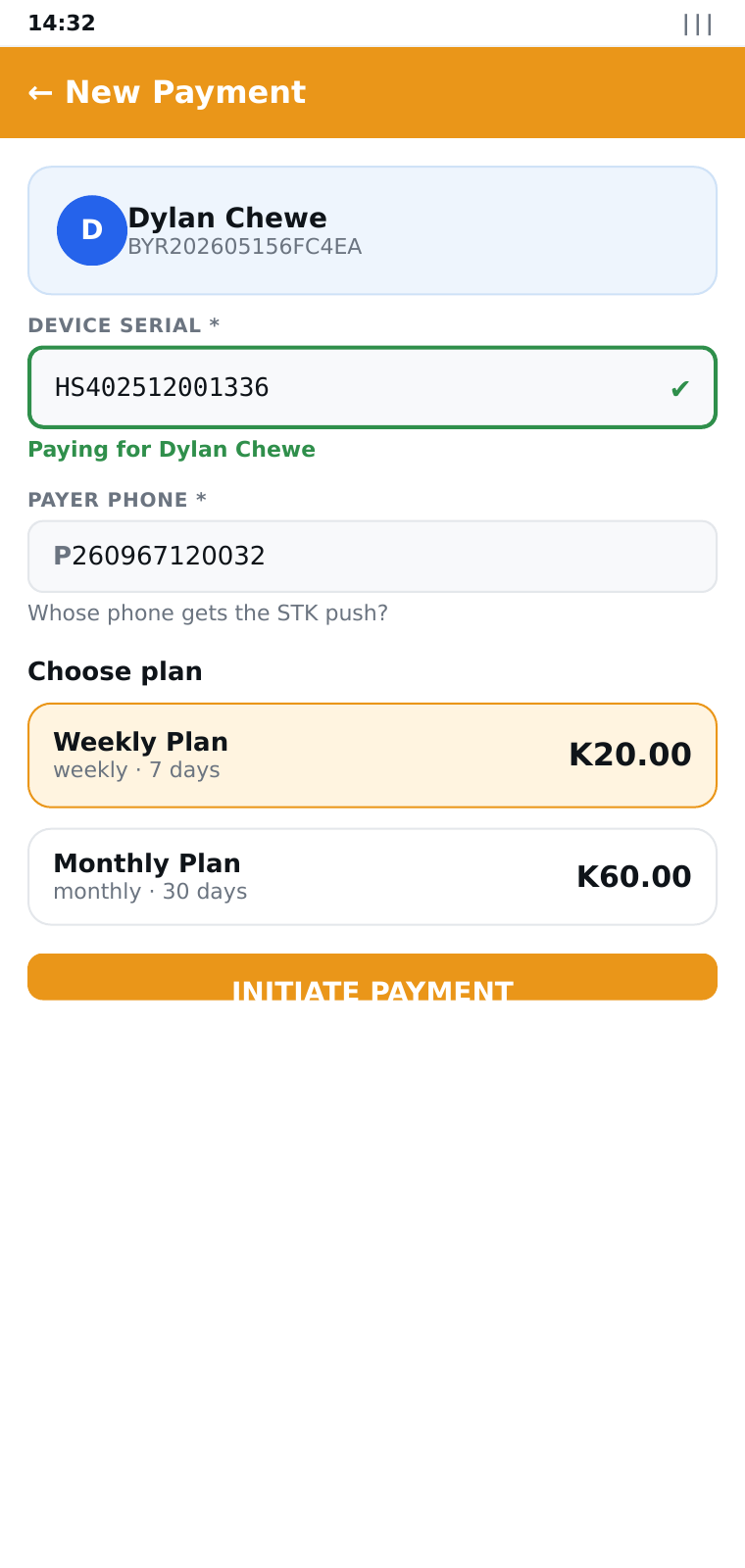
From the customer detail screen tap Pay for this customer — the customer header card appears, the Device serial input is pre-filled from the linked device, and the Payer phone is pre-filled from the customer record.
If the customer has more than one linked device, pick the chip of the one you want to pay against.
The Device serial field live-validates as you type (same icons as registration). Initiate Payment stays disabled until the status icon turns green.
Pick a Plan card. Tap Initiate Payment — spinner, snackbar "Payment initiated: TXN…".
Payer's phone receives the STK prompt → enters mobile-money PIN → Moon issues the activation code → SMS lands on the payer's phone.
Report a fault
Open the customer detail screen → Fault Reports card → Report an Issue bottom sheet. Choose severity (low / medium / critical) + describe the issue. The report appears immediately in the card and is visible to admins.
Working offline
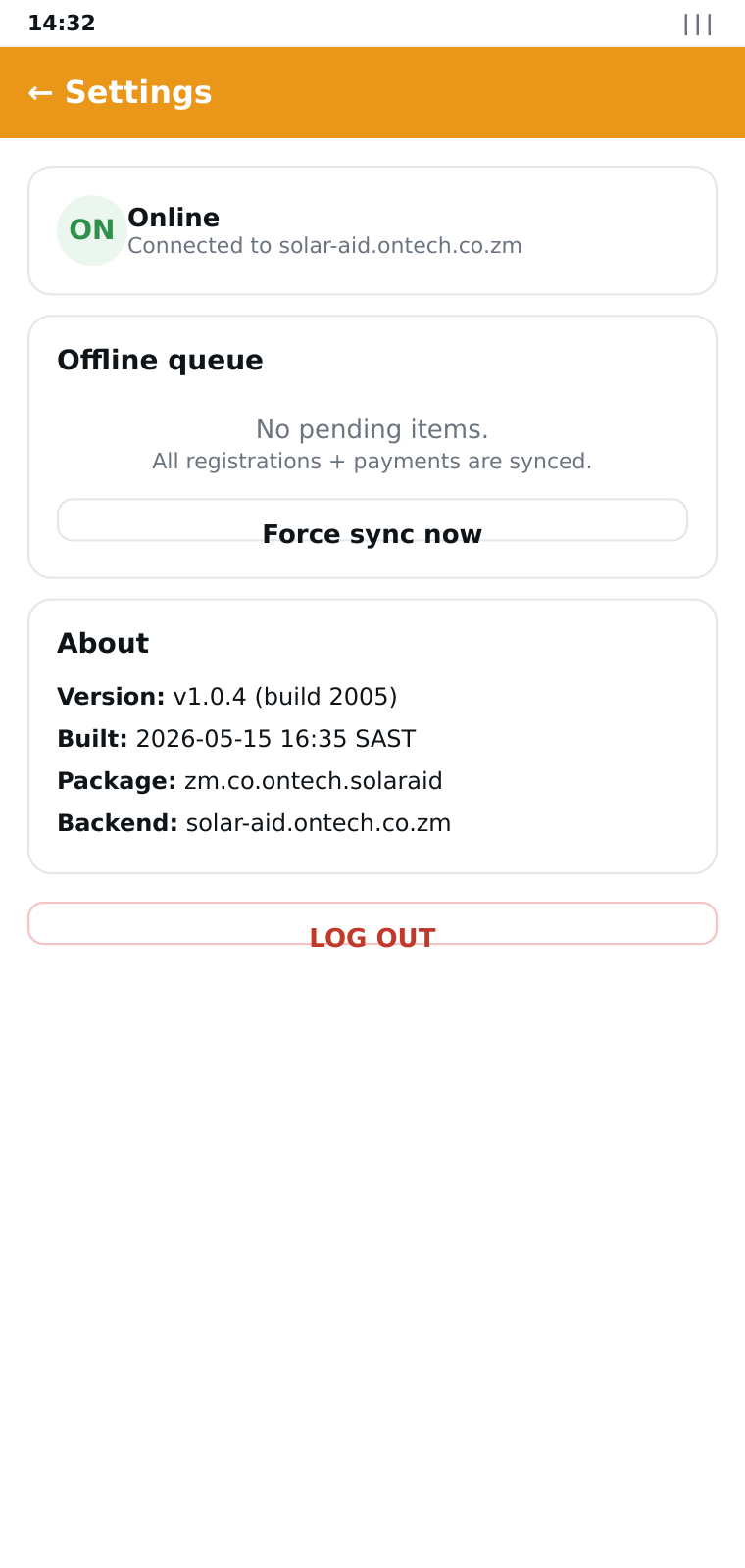
The amber Offline mode banner appears across the top when the device has no signal. Everything keeps working:
- Cached customer list, plans and history remain available.
- New registrations + payments queue locally and sync on reconnect.
- Open Settings → Offline Queue to see each queued item with attempts + last error.
- Tap Force sync now to retry, or the trash icon on a row to discard a permanently-failed action.
3. USSD *388*20#
Pay-as-you-go from any phone with no internet. Works on every Zambian network (MTN, Airtel, Zamtel, ZED).
Payment flow
Dial *388*20#.
Press 1 → Pay Energy.
Type the customer's Account number — whatever's printed on the unit. That might be a short number like 111111 or a full device serial like HS402512000283. You can also type just the last 4 digits (0283) as a shortcut, as long as it's unique. The system finds the customer either way.
Pick a plan. Confirm screen:
Press 1 to authorise. An STK push lands on the payer's phone — approve with the mobile-money PIN. Within ~15 seconds the system:
- Pre-validates the account with Moon
- Triggers the Ontech payment gateway
- On success, calls Moon
/make_paymentfor the activation token - SMS with the code lands on the payer's phone
Status / error messages
| Message | Meaning |
|---|---|
Account not found. | The typed value doesn't match any meter_number or device serial. Re-type or check with admin. |
Multiple devices end in XXXX. Type more digits. | The last-4-digit suffix matches more than one serial. Type one or two more digits. |
Account not approved. | Customer has been rejected by supervisor. Pending is allowed; only rejected blocks. Call support. |
Account suspended. | Customer is administratively suspended. |
Account inactive. | Customer status is inactive. |
Account closed. | Customer has been soft-deleted from the admin web. |
Session ended. Please dial again. | The session completed or timed out — re-dial fresh. |
K20.00 initiated. Approve on phone. | Payment pushed; complete it on the mobile-money prompt. |
4. Customer Web Portal customer
For customers who want to check their subscription and activation codes online.
Login (phone + OTP)
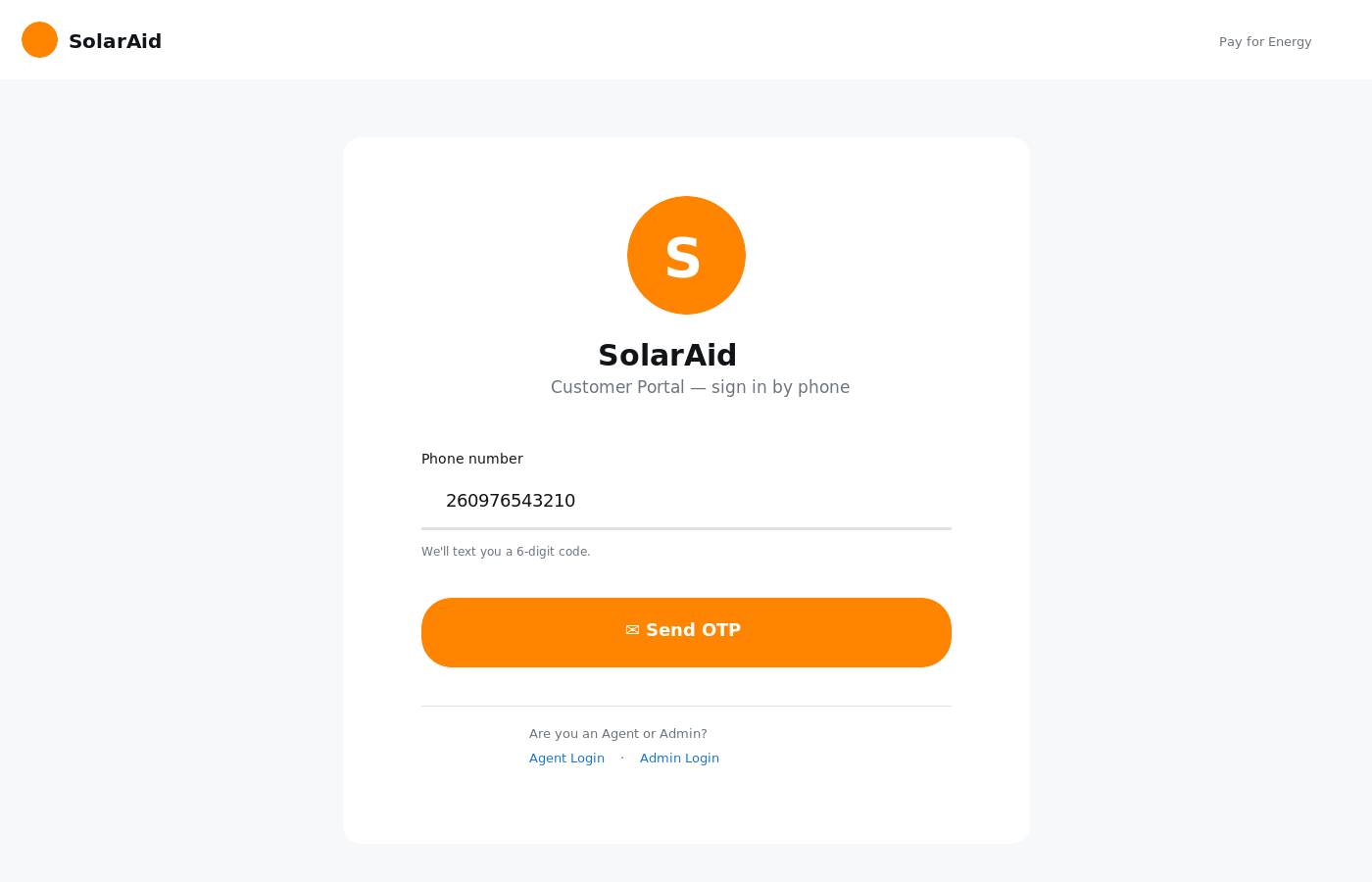
Type your Zambian phone number (with or without 260 — system normalises).
You'll receive a 6-digit OTP via SMS within ~10 seconds. Enter it on the next screen.
OTPs expire in 10 minutes; up to 5 incorrect attempts before a new one is needed.
View subscription & codes
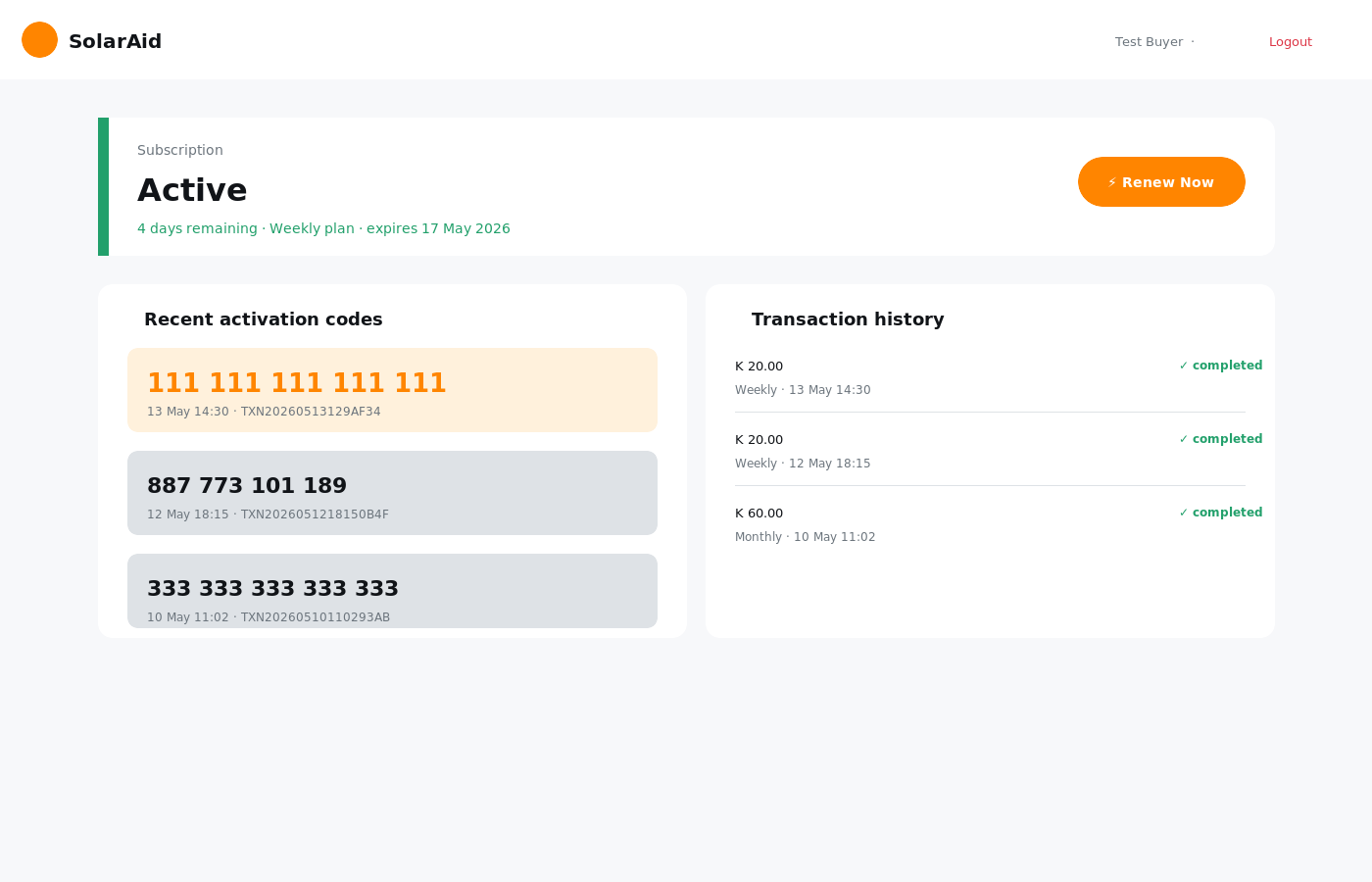
After login the customer sees:
- Subscription status — active/expired with days remaining
- Linked devices — each Moon-imported solar unit assigned to them (Phase 22 aligned the portal serializer so it now exposes the same shape as admin + mobile views)
- Recent activation codes — last 3 codes with timestamps
- Transaction history — every payment with status and amount
- Fault reports — open + resolved issues raised by their installer
- Renew button — start a payment flow (redirects to Ontech)
5. Admin roles & sessions access control
Five admin roles. Each role grants a different slice of the admin web. The factory require_role() in app/api/v1/auth.py is the single enforcement point — every gated endpoint declares its required role inline.
Role matrix
| Role | Can do | Can't do |
|---|---|---|
| super_admin | Everything. Always passes every role check. Only role that can reset another admin's password, delete admins, or initialize default system settings. | (nothing — bypasses all gates) |
| system_admin | All admin management (create / edit / suspend / activate), all system settings (pricing, kWh rate, key-value config), all customer + agent + transaction routes. | Reset other admin passwords; delete admins; POST /settings/initialize. |
| operations_admin | Soft-delete + restore customers. Full read on every admin-only route. Approve / reject customer KYC. | Admin management. Mutate system settings. |
| reports_admin | Read every admin route — customers, transactions, reports, dashboards. | Any mutation outside KYC approval. |
| support_admin | Read every admin route. Approve / reject customer KYC (so help-desk staff can clear the queue). | Soft-delete customers. Mutate settings. Mutate admins. |
What a denied request looks like
When an admin role is too narrow for an endpoint, the API returns HTTP 403 with a self-describing message:
The web UI surfaces this as a red flash banner. Read endpoints remain open to every admin role, so a support_admin can always see everything, just not modify it.
Lockout & idle timeout
- 5 failed login attempts → the admin account is set to
suspended. Another admin (or super_admin) must callPOST /admins/{id}/activateto clear it. (Phase 21 fixed an enum-case bug that previously crashed instead of locking.) - Idle-session timeout — default 30 minutes (per-admin via
session_timeout_minutes). When the gap between requests exceeds the threshold, the session is deactivated server-side and the next request returns "Session idle timeout". The agent must log in again. - IP allowlist — optional. Set
admin.ip_restriction_enabled = trueand populateadmin.allowed_ipsto lock an admin to specific source IPs. Enforced byIPRestrictionMiddleware. - Backend revocation propagates to the web — if an admin is suspended or their session forcibly killed, the next Flask page load redirects to the login screen (Phase 22 sync — frontend session cleared on any token-refresh failure, not just access-token expiry).
Agent + customer auth (for completeness)
- Agent — username + bcrypt password → JWT (
type=agent). Locked after 5 failed attempts; status must beactive(not pending / suspended / blacklisted). - Customer — phone + SMS OTP (6-digit, 10-min expiry, 5 attempts) → JWT (
type=customer). The customer portal serializer (/customer/me) was aligned in Phase 22 so it returns the same full payload as admin/agent views.
Troubleshooting
"Account not approved" on USSD
The customer was rejected by a supervisor. Open the admin web, find the customer, review the approval card, optionally re-approve.
STK push doesn't arrive on the payer's phone
Check that the phone is on, in coverage, and the mobile-money wallet is funded. Some MNOs delay STK prompts by 30-60 seconds. The transaction stays in pending for ~3 minutes; if no authorisation arrives, it auto-fails.
Mobile app shows "Offline mode" but the phone has signal
Open the app's Settings → tap Force sync now. If still stuck, toggle airplane mode off/on to refresh Android's connectivity state. Last resort: force-close and reopen the app — the cold-start drains the queue.
Activation code SMS didn't arrive
Check the recent transactions on the admin web — find the transaction, note its token field. If empty, the Moon API call hasn't completed yet (3-min poll retries). If present, the code was sent — SMS provider may have queued it. Wait 5 minutes, then call support.
Agent can't login after switching phones
Each login creates a fresh JWT bound to the device. Re-login on the new device — the old tokens are invalidated automatically.
"This endpoint requires role(s): X. Your role: Y."
Your admin role doesn't include this action. The 403 message lists exactly which role(s) are accepted — ask a super_admin or system_admin to either perform the action or upgrade your role. Full matrix in RBAC → Role matrix.
"Session idle timeout" / forced to log in again after a break
Admin sessions expire after 30 minutes of inactivity by default (admin.session_timeout_minutes). Log back in. A super_admin can bump the threshold per-admin if needed.
Device serial input stays red on the mobile app
The device hasn't been imported from Moon yet — admin must run Devices → Import from Moon with the CSV before agents can link it.
"Multiple devices end in XXXX" on USSD
The 4-digit suffix you typed matches more than one serial. Type one or two more digits — the system needs enough characters to identify a unique unit.
Glossary
| EAAS | Energy-as-a-Service — pay-as-you-go solar with periodic plan-based payments. |
| KYC | Know-Your-Customer — the identity + address + property data collected during agent registration. Reviewed by a supervisor before approval. |
| OTP | One-Time Password — 6-digit SMS code sent to a customer's phone during portal login. 10-minute expiry, 5 attempts. |
| JWT | JSON Web Token — the signed credential the API issues after login. Carries the user id, role and session id (jti) so server-side revocation works. |
| NRC | National Registration Card — the Zambian national ID. Optional on registration; captured for KYC where the customer offers it. |
| FAB | Floating Action Button — the round Material-style button anchored to the bottom-right of mobile screens (e.g. + Register on the Customers list). |
| Activation code | The token a customer enters into their solar unit to unlock energy for a paid period. |
| Moon | The platform we integrate with for the activation-code workflow (/validate + /make_payment) and for the source-of-truth device inventory imported into our Devices table. |
| Ontech Gateway | The payment processor used to debit the payer (STK push, mobile-money). payments.ontech.co.zm |
| STK push | SIM Toolkit prompt that appears on the payer's phone, asking them to enter their PIN to authorise. |
| Account number | The customer's identifier on the system — what gets typed at the USSD "Enter Account No" prompt and at the mobile-app payment screen. It's whatever is printed on the customer's solar unit: a short legacy meter number (e.g. 111111) on older units, or a full device serial (e.g. HS402512000283) on newer Moon-imported units. From the user's perspective these are the same thing. |
| Device serial / Meter number | Two names for the same Account number, depending on the unit's age. Newer Moon units have a 14-character serial like HS402512000283; older units have a short numeric meter number. USSD and the mobile app accept either. |
| Last-4 shortcut | Type just the last 3-4 digits of a long device serial instead of the full 14 characters — e.g. 0283 resolves to HS402512000283 when exactly one unit matches. If the suffix matches more than one device the system asks for more digits. |
| Ward | Sub-district administrative unit. Currently Rufunsa → Namanongo is the only curated ward, with 30 villages bundled. |
| Trusted Person | The customer's next-of-kin captured during KYC. |
| Approval queue | The pool of customer registrations awaiting supervisor review. |
| Approval gate | The rule (Customer.can_purchase()) that blocks payments for customers whose raw_data.approval.status is rejected. Pending KYC is allowed by design. |
| Idle-session timeout | Server-side rule that deactivates an admin session after 30 minutes (default) of no activity. Phase 22. |
Need help? support
Operations issues, login lockouts, fault triage and Moon imports — reach the support team. Include the affected customer ID or transaction ID when you write in.
POST /admins/{id}/activate